
Uploading screenshots to the App Store used to be sooo laborious. Especially with Subtitles Viewer – four screenshots x 22 language localisations x 2 app flavours = 176 screenshots. That’s a lot of manual uploading to do!
This is part 3 of 3. Part 1 captured the screenshots, part 2 turned them into marketing images, now we need to upload them!
So now there are 176 perfectly good PNGs sitting in a folder. The old way of getting them onto the store was: open App Store Connect, pick a localization, drag in four iPhone images, four iPad images, switch language, repeat until you’ve forgotten why you localize apps at all.
With fastlane, we can automate this whole process. Hooray! Same idea as the last two posts – describe the job once, let the computer repeat it.
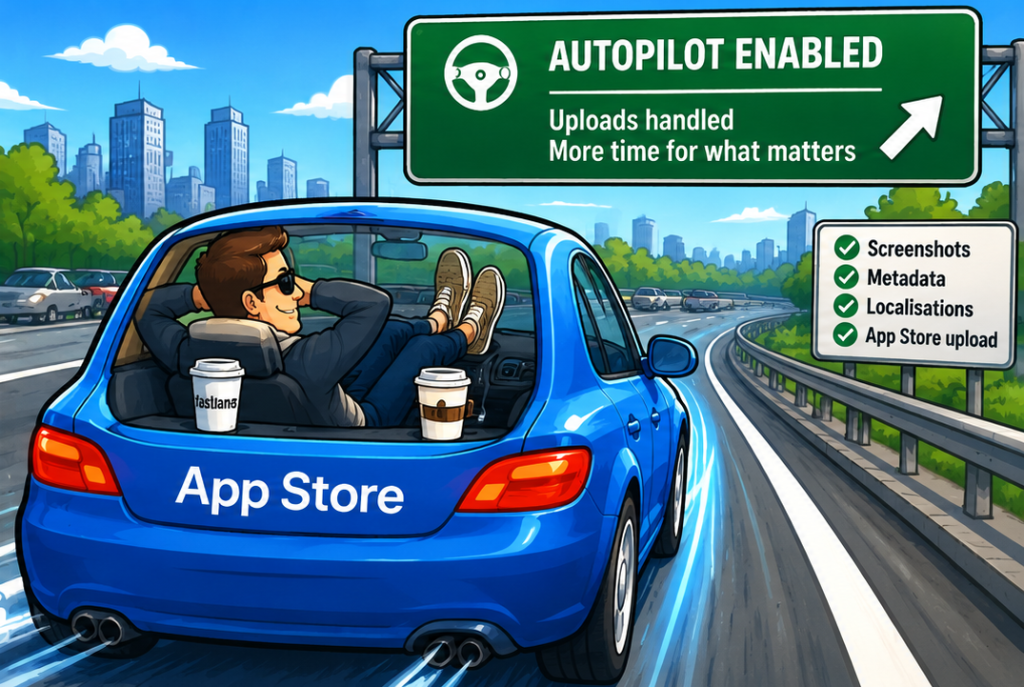
What we’re sending
The tool is called deliver (in a Fastfile you’ll see it as upload_to_app_store). It talks to App Store Connect and can upload listing text, screenshots, and even the app binary. For this series we don’t need the binary. The app can go up separately. We just want the pictures – and, while we’re there, the metadata that sits next to them.
fastlane looks for a folder that looks like this:
fastlane/screenshots/store/
  en-US/
    iPhone 17 Pro Max-01Home.png
    iPhone 17 Pro Max-02Cinema.png
    iPhone 17 Pro Max-03Search.png
    iPhone 17 Pro Max-04Language.png
    iPad Pro 13-inch (M5)-01Home.png
    ...
  ja/
    iPhone 17 Pro Max-01Home.png
    ...
That’s exactly what part 2 wrote. Language folders, device name in the filename, numbered in the order they should appear on the store. If that structure is right, the upload is mostly configuration.
A key, not a password
App Store Connect no longer wants your Apple ID typed into a script. You make an API key instead.
- In App Store Connect, go to Users and Access → Integrations → App Store Connect API.
- Create a key. App Manager is enough for screenshots and listing text.
- Download the
.p8file. You only get one chance – if you lose it, you make a new key. - Note the Key ID and the Issuer ID on that page.
Put the .p8 in your fastlane folder, and make sure it isn’t committed to git. Mine is gitignored as fastlane/*.p8. Then tell fastlane who you are, either with environment variables:
export APP_STORE_CONNECT_KEY_ID="ABC123"
export APP_STORE_CONNECT_ISSUER_ID="your-issuer-id-here"
or by dropping a file named AuthKey_ABC123.p8 next to the Fastfile. If there’s exactly one of those files, fastlane can pick it up itself.
The Deliverfile – your upload shopping list
Alongside the Snapfile from part 1, you get a Deliverfile. This is where you say what to upload, and just as importantly, what not to do:
app_identifier "com.interactivecoconut.subtitlesviewer"
app_version "4.0"

screenshots_path "./fastlane/screenshots/store"
metadata_path "./fastlane/metadata"

skip_binary_upload true
overwrite_screenshots true
submit_for_review false
automatic_release false
force true
In human:
skip_binary_upload– don’t touch the IPA. This run is listing only.overwrite_screenshots– replace whatever is already on the store page. Otherwise Apple keeps the old ones and you end up with a mix of 3.2 and 4.0.submit_for_review false– upload the pictures, then stop. You still get to glance at them in App Store Connect before you hit Submit.force true– skip the “here’s an HTML preview, press enter” prompt, which is not fun when you’re running this for the second time today.
One more thing I learned the awkward way: if fastlane is going to create version 4.0 for you, don’t also create 4.0 by hand in App Store Connect first. Pick one. I let fastlane create the version, then fill it.
A lane you can actually run
The Fastfile wraps that up so the command stays short:
lane :upload_metadata do
  api_key = connect_api_key
  upload_to_app_store(
    api_key: api_key,
    skip_binary_upload: true,
    overwrite_screenshots: true,
    submit_for_review: false,
    force: true
  )
end
Then, from the project folder:
bundle exec fastlane upload_metadataIt will chug. 176 images is a lot of JPEGs for Apple’s servers to digest (they accept PNG; they still take a minute). Go and make the other cup of tea. When it finishes, open App Store Connect and spot-check a few languages – English, something with a long caption like German, and something that reads right-to-left like Arabic or Hebrew.
The Pro app is just a second pass
Subtitles Viewer PRO is a different bundle ID, a different screenshots folder, and a different metadata folder. Same lane shape, different paths:
lane :upload_metadata_pro do
  api_key = connect_api_key
  upload_to_app_store(
    api_key: api_key,
    app_identifier: "com.interactivecoconut.subtitlesviewerpro",
    metadata_path: "fastlane/metadata-pro",
    screenshots_path: "fastlane/screenshots/pro/store",
    skip_binary_upload: true,
    overwrite_screenshots: true,
    submit_for_review: false,
    force: true
  )
end
That’s the whole “twice as many screenshots” problem from part 1, reduced to a second command. The hard work was already in the capture and the compose.
A few things I learned the hard way
Apple’s locale codes are not always yours. I captured Arabic as ar. App Store Connect wants ar-SA. The compose step maps that on the way into the store folder, so deliver finds the language it expects. If a localization is missing after upload, it’s often a folder name mismatch like this, not a failed transfer.
The filename is how Apple knows the device. iPhone 17 Pro Max-01Home.png goes in the 6.9-inch slot. iPad Pro 13-inch (M5)-01Home.png goes in the 13-inch slot. If you rename them to home.png, deliver shrugs and skips them.
Transparent PNGs will fail. That’s why part 2 flattened everything. If the upload errors on a specific file, open it and check for an alpha channel.
Don’t submit from the script until you’ve looked. submit_for_review false is doing you a favor. Screenshots are easy to glance at in Connect, and much harder to un-submit.
The whole pipeline, for next time
The work is six jobs: capture, compose, and upload, for the free app and again for Pro. I don’t type six commands on a full rerun, because the screenshots and screenshots_pro lanes already compose at the end. That’s why a from-scratch run looks like four:
bundle exec fastlane screenshots
bundle exec fastlane screenshots_pro
bundle exec fastlane upload_metadata
bundle exec fastlane upload_metadata_pro
If I only change a caption, I skip capture and run the compose lane from part 2 instead – once for the free app, once for Pro – then the two uploads. Same six jobs, just not all of them every time.
The first time, the pipeline does take some building. Every time after that, it’s a cup of tea!
Leave a Reply